









 BACK
BACK
Samsung Wallet
Amazing Samsung gifts every time you shop
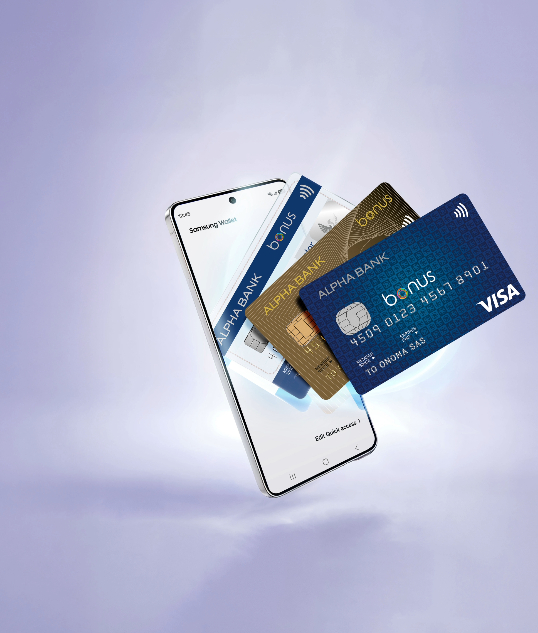
Contactless payments with your Samsung Galaxy phone

Can I add my card?
Add the card provided you...
- Hold any Alpha Bank debit, credit or prepaid Visa card.
- Have the Samsung Wallet app on your mobile.


Have at hand...
- Your Samsung Galaxy mobile phone.
Add your card to the Samsung Wallet


1. Choose a card
Download the Samsung Wallet app on your mobile.
On the home screen, tap on “+” and choose “Payment cards”.
Add the card you want to your Samsung Wallet
2. Accept the terms
3. Verify the card
To verify your card online, tap on “Card issuer web verification”.
Otherwise, choose “Later” to verify your card at a later time.
Verify your card with strong customer authentication, through a push notification.
If you have not activated push notifications, verify your card with the 6-digit verification code you receive on your mobile and the 3-digit e-com PIN.
How do I pay with Samsung Pay?
Contactless payments on the spot
To pay with your default card:
- Unlock your mobile with biometrics, pattern or your mobile PIN.
- Open the Samsung Wallet app.
- Bring your mobile close to the POS and pay with your default card.
You receive a push notification with the transaction result.
With Samsung Pay, you can pay online when you shop from your computer or mobile in Greece or abroad, without filling in your card details every time. As long as the business supports Viva Payments.
At the checkout, choose Samsung Pay as the payment method or tap on “Pay with Samsung Pay”.
You receive a push notification with the transaction result.
No personal digital banking?
Get credentials
From your computer or mobile
If you hold an active Alpha Bank debit or credit card, you can get credentials on the spot, without visiting a branch.
Start banking with us
Online, without visiting a branch
Open your first account with Alpha Bank and get digital banking credentials online.


