









 BACK
BACK
Click to Pay

Online payments in a flash

Why use Click to Pay
Fast online shopping
Click to Pay is a simple and quick way to shop online from your computer or mobile, in Greece and abroad, without having to enter your card details every time.
You can activate it from your mobile through the myAlpha Mobile app and create your own Click to Pay profile. Pay in a flash, as long as the online merchant has added Click to Pay to their payment methods. In this case, you’ll see the Click to Pay.


Perfectly secure
When you add your card to Click to Pay, its details are saved under your profile, within the secure e-Banking environment. This means they are fully protected.
Cost-free
Click to Pay is completely free of charge, with no activation or annual fee.
Time-saving
Online shopping is made fast and simple every time, as you don’t have to:
- Enter your card details.
- Remember your passwords.
- Create accounts at e-shops.


Can I use Click to Pay?

Activate it provided you...
- Hold an Alpha Bank debit, credit or prepaid card.
- Have e-Banking credentials.
- Have installed the myAlpha Mobile app on your mobile.
Have at hand...
- Your smartphone
- Your computer

How can I add my card to Click to Pay?


1. Choose a card
Log into myAlpha Mobile.
On the main menu, tap on “Cards”.
Find the card you want and choose “Add to Click to Pay”.
Check that your mobile number and email are correct. If they are not, find out how you can update them through your e-Banking.
Then, tap on “Get Click to Pay”.
2. Accept the terms
Read and accept the terms and the notice on the processing of personal data.
Choose “Confirm”.
3. Approve the transaction
Enter the 6-digit code you receive on your mobile through Viber / text message.
Click on “Close” to conclude the process.
You have activated Click to Pay for the card you chose. To add more cards, repeat the same steps for each one.
How do I pay with Click to Pay?

1. Choose Click to Pay
2. Enter your email
Fill in your email.
Confirm with the 6-digit code you receive on the mobile number you’ve registered.
If you’ve used the device for a Click to Pay transaction before, you will not be asked to confirm again with a 6-digit code.
3. Choose card
4. Approve the payment
Approve your payment in 1 of 2 ways:
- Push notification sent to your mobile.
- 6-digit code you receive on your mobile and 3-digit e-com PIN, if you have not activated push notifications.
5. Complete the transaction
The payment is confirmed.
You receive the purchase receipt by email.
No personal digital banking?
Get credentials
From your computer or mobile
If you hold an active Alpha Bank debit or credit card, you can get credentials on the spot, without visiting a branch.
Start banking with us
Online, without visiting a branch
Open your first account with Alpha Bank and get digital banking credentials online.
Staying secure


How we protect you
How to protect yourself
What you must look out for
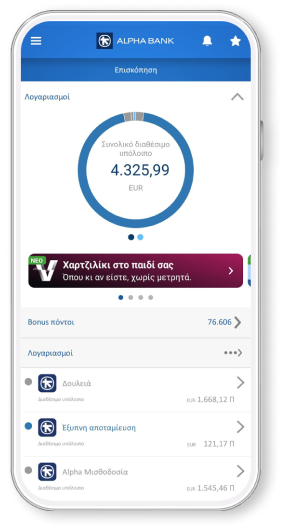
Bring your bank to your mobile
Download mobile app today and get a bank on your mobile.




Any questions?
Find the answers you need about Click to Pay.
Can I remove my card from Click to Pay?
Yes. From your mobile through Alpha Mobile:
- Choose Menu > Cards, find the card you want to remove from Click to Pay and tap on “Remove”.
- Choose “Remove card”.
- Enter the 6-digit verification code you receive on your mobile.
- Tap on “Close” to conclude the process.
I’ve lost the card I added to Click to Pay. What should I do?
Your old card will be removed from Click to Pay and you’ll need to add it again.
Can I add my card to Click to Pay through myAlpha Web?
Not yet. You can currently add it only from your mobile through myAlpha Mobile.
Soon, you will also be able to add it from your computer through myAlpha Web.