






 BACK
BACK
Business digital banking user management
Your business structure on your digital banking

What are the categories for general digital banking users
Up to 5 simple users
You can create up to 5 simple users per business digital banking.
What are their rights
- Are updated on the balances and activity of business accounts and loans, for which they have been assigned update rights by an authorised user.
- Prepare and enter transfer or payment jobs for approval by an authorised user and an approving user, when a 2nd approval is required.
- Track the status of transactions they have saved for approval.
- Cancel payments that have not yet been approved by an authorised user.
How they get access
Simple users are created by authorised users through business web banking, and are given a username and password.


Up to 10 authorised users
You can create up to 10 authorised users with the same rights per business digital banking. A transaction may be carried out once it is approved by one of the authorised users.
What are their rights
- Prepare payments to be approved by them and approving users, when a 2nd approval is required.
- Track the status of payments and have access to the history.
- Approve or reject bulk payments saved by simple users or by themselves.
- Cancel payments that have not yet been completed, when they are “Pending”.
- Create simple users, create their username and password and assign their common rights.
- Remove simple users.
How they get access
Authorised users get their username at a branch and on their email. Then, they create a password through business web banking.
Up to 10 approving users
You can create up to 10 approving users with the same rights per business digital banking, if the process you follow requires a 2nd approval for any transaction. This means that an authorised user and an approving user are required to approve a transaction.
What are their rights
- View information on the business banking products (balances, activity, history, etc.)
- Are notified of any new transaction already approved by authorised users.
- Give the final approval or reject payments, which authorised users have already approved individually or in bulk.
How they get access
Approving users get their username at a branch and on their email. Then, they create a password through business web banking.


Signing users
You can create as many signing users as you want per business digital banking. Usually, and depending on your business needs, you set 1-2 signing users.
What are their rights
Signing users have the right to sign online documents shared between the business and Alpha Bank, and grant targeted access to natural persons to the “Documents” section for the same purpose.
They have access to the sections:
- Documents > Requests
- Documents > Digital signatures
- Profile > Subscription details
Under “Subscription details” they can only edit the contact details.
How they get access
For signing users to get access, the legal representative of the business has to apply at a branch.

What are the rights of special business digital banking users


1. Getting an overview of the users
To view the details of the users who have access to your business digital banking:
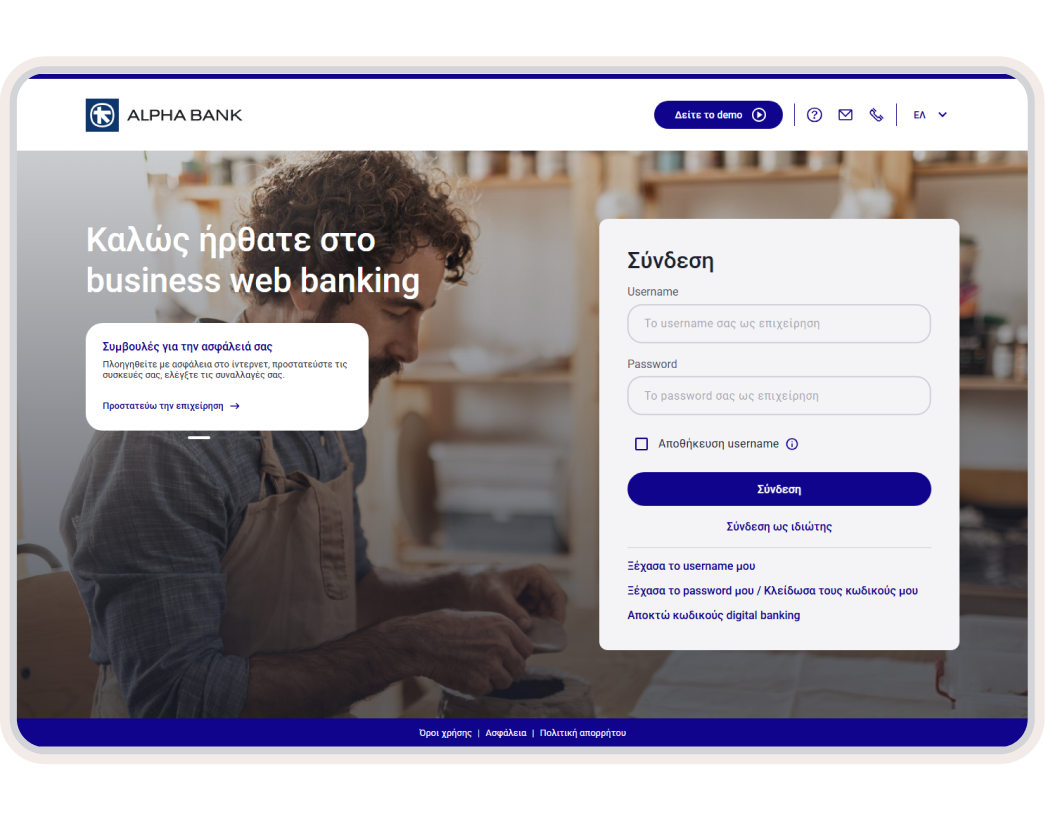
- Log into business web banking with your credentials.
- On the home screen (Overview), choose “Profile” from the top menu on the right.
- Choose “User Management”.
You can see all users per category, as long as you are not a simple user.
2. Creating a new simple user
To add a new simple user, you must be an authorised user:
- Log into business web banking with your credentials.
- On the home screen (Overview), choose “Profile” from the top menu on the right.
- Choose “User Management”.
- Choose “Create new simple user”.
- Fill in the first and last name of the user and create a username and password. Click on “Submit”.
The new user now appears under “User Management”.
Give the username and password to the user, so they can log in. The user can create a personal username and password later on.
3. Modifying simple user rights
To assign additional rights to simple users through general subscription business digital banking you must be an authorised user:
- Log into business web banking with your credentials.
- On the home screen (Overview), choose “Profile” from the top menu on the right.
- Choose “User Management”.
- Under “Simple users” choose “Modify simple user rights”.
- Choose the additional rights you want to assign to simple users: inquiries (e.g. balances, transactions), information (profile), management transactions (change account ID).
- Click on “Save changes”.
The additional rights are assigned to all simple users, not each individual one
New to Alpha Bank?


For freelancers
For registered companies with 1 representative
For businesses with 2+ legal representatives
No digital banking?
Get business credentials
For freelancers or companies with 1 representative
Get business credentials, provided you already have personal ones or hold an active Alpha Bank card.
Get personal credentials
If you haven’t already signed up
Get personal digital banking credentials in a flash through your mobile or computer.
Any questions?
Find the answers you need about user categories on your business digital banking.
How can I remove a simple user from my business digital banking?
- Log into business web banking with the digital banking credentials of your business.
- On the home screen (Overview), choose “Profile” from the top menu on the right.
- Choose “User Management”.
- Under “Assistant users” click on the 3 horizontal lines next to the name of the user you want to remove.
- Choose Delete assistant user > Execute.
How can I change the password of a simple user through business digital banking?
- Log into business web banking with the digital banking credentials of your business.
- On the home screen (Overview), choose “Profile” from the top menu on the right.
- Choose “User Management”.
- Under “Assistant users” click on the 3 horizontal lines next to the name of the user whose password you want to change.
- Choose “Re-issue password”.
- Enter the new password you want to assign to the user and choose “Submit”.
How can I change the username of a simple user through business digital banking?
Manage user categories
Log into your business web banking from your computer and customise your digital banking to suit your business needs.